GNU Radio
- Install GNU Radio (Installation instructions at the gnu radio wiki)
On Linux:
sudo apt-get install gnuradioOn Windows: If you want to use the Adalm Pluto, use the wsl instructions
- Install any blocks necessary for your SDR
- Lime devices:
- install gr-limesdr
On Linux, installation instructions can be found on the github page. On Windows, installation instructions can be found on the older github page.
- Adalm-Pluto:
Not available on Mac. Comes with GNU Radio 3.10 on Linux, for Windows follow these instructions.
- USRP:
Chances are, you have the blocks for this installed with GNU radio. If you have not downloaded the software for using USRP devices previously, you may have to do a little extra setup:
sudo /usr/local/lib/uhd/utils/uhd_images_downloader.pyThis command installs the images that let it connect to the board. Once it finishes installing, you can test that it worked using the instructions on the USRP tutorialTip
If building GNU radio from source (Linux), you will see instructions to install UHD before proceeding with the rest of installation.
- RTL-SDR:
On Linux, run
sudo apt-get install rtl-sdr soapysdr-module-rtlsdr. You can check that this worked withSoapySDRUtil --info. You should see a message which includes:Available factories... <other_factories>, rtlsdr
Ensure that your radio is plugged in with an antenna that supports VHF
Open GNU Radio Companion
Open the FM receiver example (pulled from the github for gnuradio plugin for lime devices).
- Use CTRL+F to search for a receiver block for your radio:
SDR Receiver blocks¶ SDR
Block name
Lime
LimeSDR Source (RX)
Pluto
PlutoSDR Source
RTL-SDR
Soapy RTLSDR Source
USRP
UHD: USRP Source
Drag and drop the block into the workspace. Connect the “out” port to the “in” port of the Low Pass Filter block.
- Configure the block:
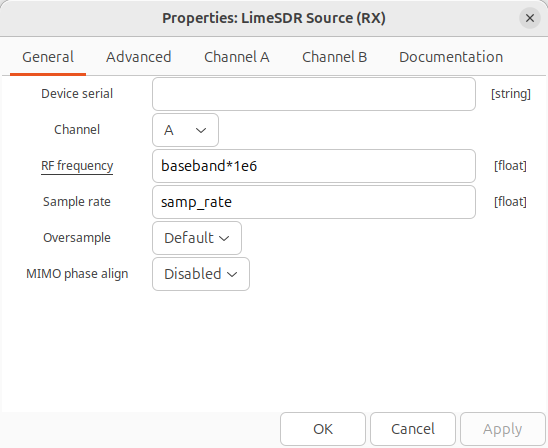
SDR block Configuration¶ Lime
Pluto
Under the General tab:
RF frequency - baseband*1e6
Sample rate - samp_rate
Under the General tab:
LO Frequency - int(baseband*1e6)
Sample Rate - int(samp_rate)

RTL-SDR
USRP
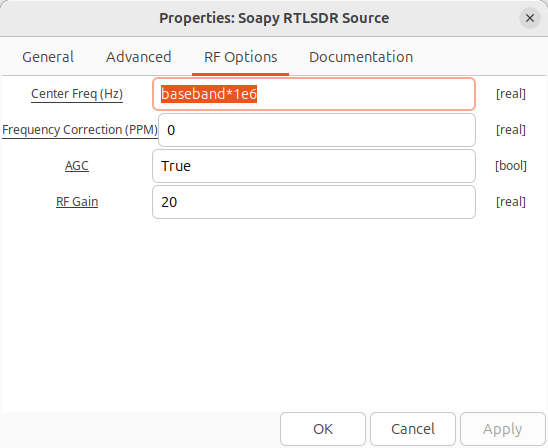
Under the RF Options tab:
Center Freq (Hz) - baseband*1e6
AGC - True
Under the General tab:
Sample Rate autopopulates
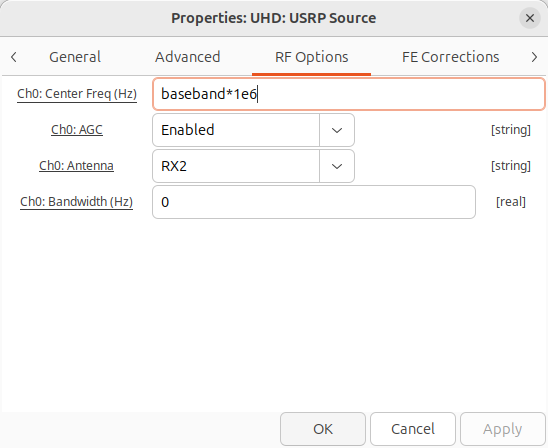
Under the RF Options tab:
Ch0: Center Freq (Hz) - baseband*1e6
Ch0: AGC - Enabled
Under the General tab:
Samp rate autopopulates
Press the play button and in the new window that opens, change the baseband field to an FM radio station.
