Adalm Pluto
The Adalm Pluto is a very simple SDR to use and setup. Analog Devices provides a very good tutorial. Here is a link to it: ADALM-PLUTO Overview [Analog Devices Wiki]. This tutorial will highlight the key steps in their procedure. If this tutorial is lacking or missing information, refer to Analog Devices much more detailed documentation.
Setup
Start by plugging in the PlutoSDR into your computer, the box that the SDR came in should have with a cable. Otherwise most micro USB cables will work. From their wiki:

Opening the info.html file in the Pluto’s storage device will display instructions for upgrading firmware, installing libraries and testing the installation. This tutorial summarizes those instructions.
Tip
Towards the bottom of the info.html page is additional information on the device such as model information and configuration settings.
Firmware
To upgrade the firmware, use the info.html page to download the latest version of the firmware. It will look like this:
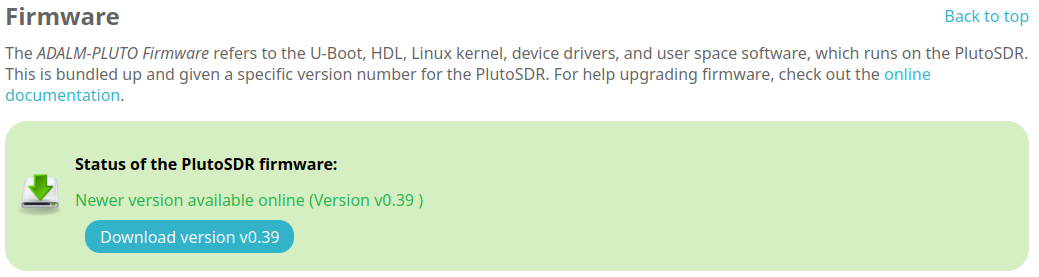
Follow the link to the online documentation on upgrading firmware. From that page:
- download the package (a zip file labeled plutosdr-fw-v[version number].zip)
the firmware file is downloaded from the download link in info.html
copy the file into the pluto storage space
eject the drive
After the drive is ejected the PlutoSDR’s LED1 will flash rapidly. This indicates that the firmware is being updated. The process takes about a minute and then the PlutoSDR will appear again as a storage device. If successful the new info.html page will display this under the firmware section:

The firmware is now up to date!
Install libiio
The info.html site has the information for downloading libiio. The download depends on the OS of the system, the file type to be downloaded and the version. Select and download the appropiate version of the file.
For example if I am using Ubuntu 24.04 I would select Ubuntu for the OS. Then I would select the file type, I find .deb files easy to use. Finally I select Linux-Ubuntu-22.04 for the version and click the link next to it. This will download the appropiate file for my system. Either open the file and install it in package installer or install the package (and its dependencies) with:
sudo apt install ./[path to libiio.deb file]
If you are using a newer version of Ubuntu like 24.04 you may have issues
installing a libiio dependency libaio. The above command will output:
E: Package 'libaio1' has no installation candidate
libaio is not designed to work with Ubuntu 24.04 in favor of other packages.
The following is a straight foward way of resolving this issue.
curl -O http://launchpadlibrarian.net/646633572/libaio1_0.3.113-4_amd64.deb

sudo dpkg -i libaio1_0.3.113-4_amd64.deb
Now installing libiio as before should work.
Tip
If the options for Type and Version appear blank, select a different OS option and then select the original option again.
Also if on Windows the correct OS option is setup.exe
Testing that Everything is Working
Adalm Pluto provides simple commands through libiio for testing if the AdalmSDR is correctly configured.
iio_info -s
iio_info -u ip:192.168.2.1
iio_info -s produces a list of connected devices including the
Adalm Pluto. One of the contexts should look similar to
0: 192.168.2.1 (Analog Devices PlutoSDR Rev.C), ....
iio_info -u ip:192.168.2.1 pulls info from the Adalm Pluto.
The command should produce something similar to:
iio_info version: 0.26 (git tag:a0eca0d)
Libiio version: 0.26 (git tag: a0eca0d) backends: local xml ip usb serial
IIO context created with network backend.
Backend version: 0.26 (git tag: v0.26)
Backend description string: 192.168.2.1 Linux (none) ...
IIO context has 9 attributes:
hw_model: Analog Devices PlutoSDR Rev.C (Z7010-AD9363A)
hw_model_variant: 1
...
If the commands produce these outputs then the Adalm Pluto is properly setup!
SoapySDR Setup
To use SoapySDR on the Adalm Pluto the correct module needs to be installed. The module’s code can be found on their github. Running the following will build and install the Pluto SoapySDR module.
git clone https://github.com/pothosware/SoapyPlutoSDR

cd SoapyPlutoSDR

mkdir build

cd build

cmake ..

make

sudo make install