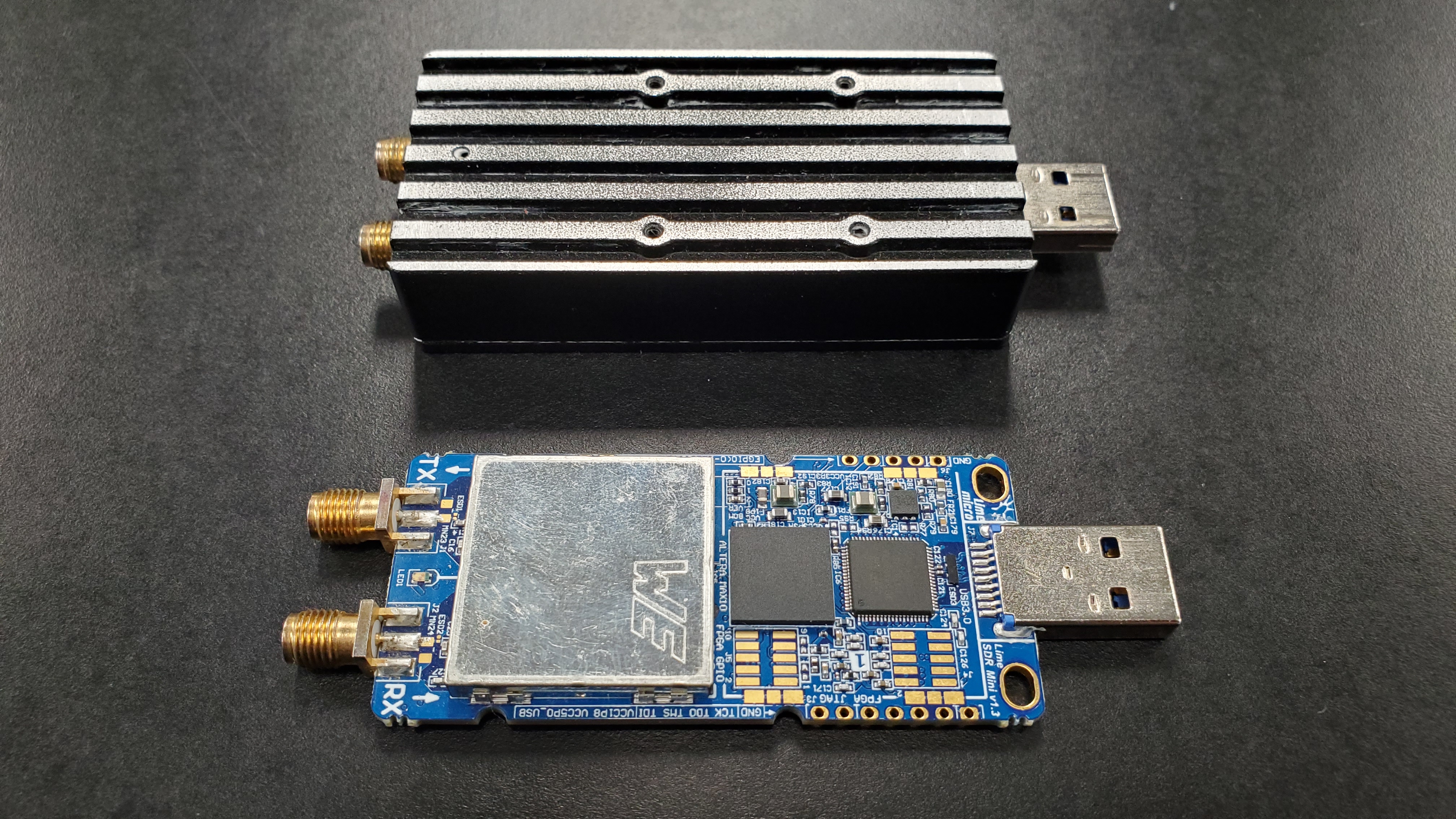
Lime Mini
Hardware setup
Connect the Lime mini to the computer through a USB port.
Tip
Use of an ESD strap while handling the Lime mini is recommended to avoid damage to the device.
Additionally, a connector saver/short extension cable will make it harder to damage the USB port.
Software setup
The Lime mini utilizes Lime Suite for API and GUI access. Either the Classic or Next Generation (NG) application can be used assuming a compatible OS, however information on use will be provided for the NG application.
NG
Installation instructions can be found on the NG Github.
Installing wx and then installing LimeSuiteNG from source will allow use of the GUI. (If installing for Linux, after downloading the source, extract the files and in the new folder navigate to docs, then gtk and open the install.md file for instructions).
Classic
Installation instructions may be found on the Classic Github.
Use
Information about the tools can be found on the LimeSuite Github.
Installation comes with a set of tools allowing use of the SDR, these are
limeDevice
limeConfig
limeTRX
limeSPI
limeFLASH
Running any of these with the -h flag will provide more
information (e.g. limeConfig -h).
If the GUI was installed, it can be run with the command limeGUI.
Example - viewing radio frequency bands
An antenna supporting VHF and UHF was used for this example (connect to the RX port).
Configuration
Command line option:
limeConfig --initialize --samplerate=20e6 --rxen=1 --rxlo=89.1e6 --rxgain=26 --rxpath=LNAW # rxlo=88e6-108e6
Or using limeGUI (limeGUI):
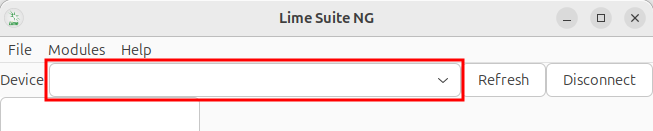
Select the Lime mini from the devices dropdown.
- Turn transmission off and select the following (leave all other settings unchanged):
RxAntenna: LNAW
RxGain (dB): 26 (this can be adjusted down or up as desired)
RxLO (MHz): 89.1 (or another frequency between 88 and 108 MHz)
Enable TxA: Uncheck

Press “Submit”
Viewing Frequencies
You can identify the highest frequency of a signal on the command line with the command:
limeTRX --fft
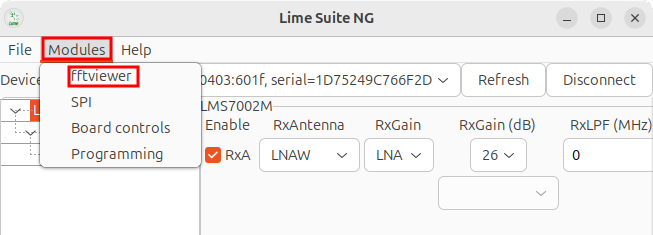
In the GUI, you can do this by pressing modules and selecting the fftviewer.
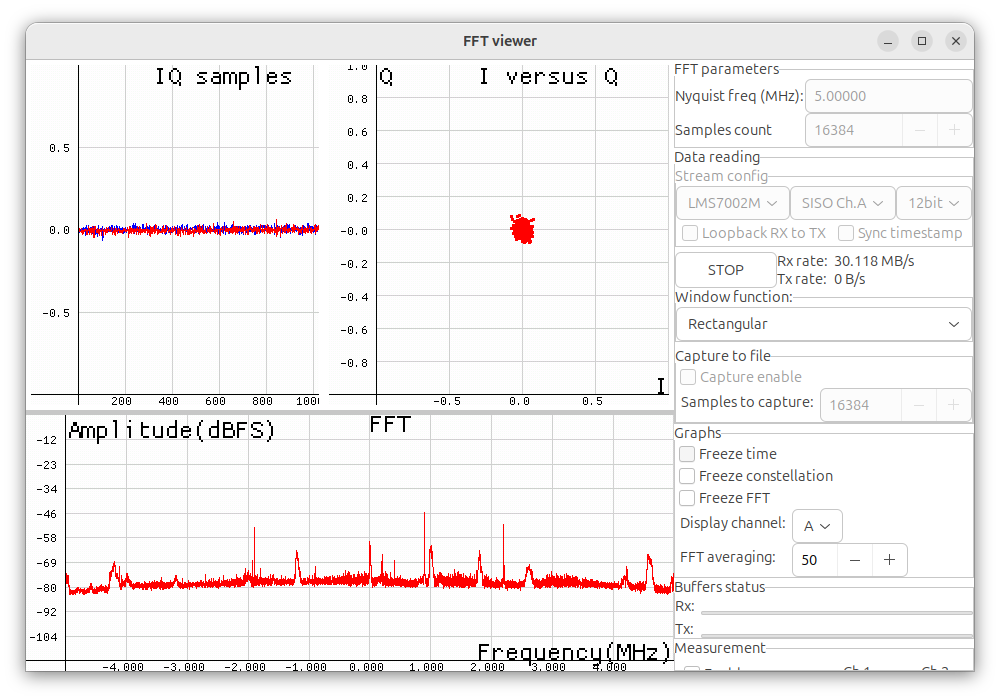
Press start in the new window. The output should resemble the following: